Getting started
Autaxo is a cloud-based dealer management system for independent used-car dealers. After signing in at garage.autaxo.de, you arrive directly on the dashboard. A clean initial setup is worthwhile before you sell your first vehicle.
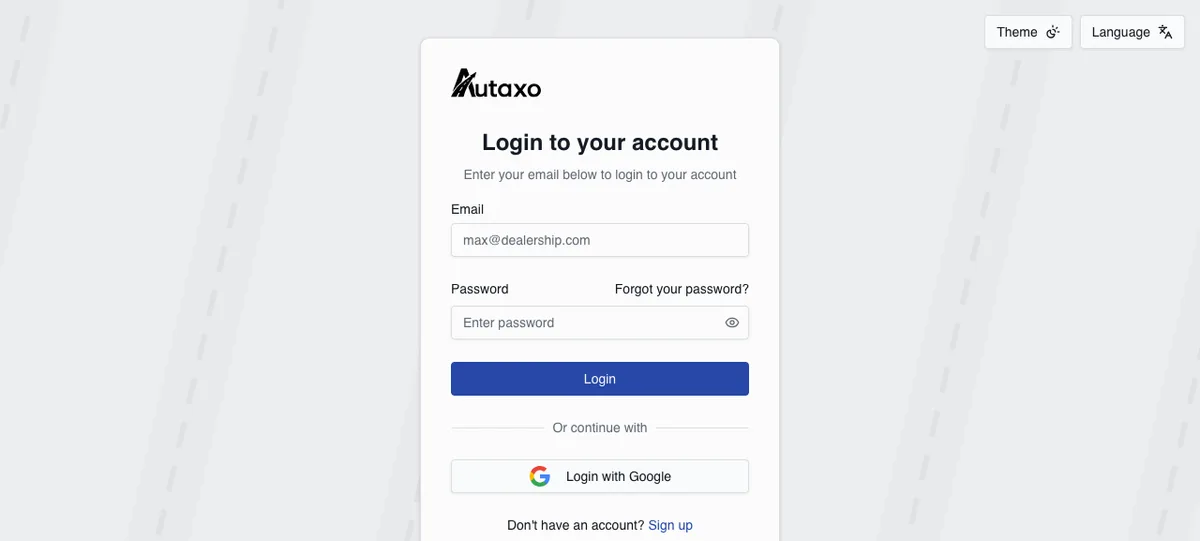
Recommended setup order:
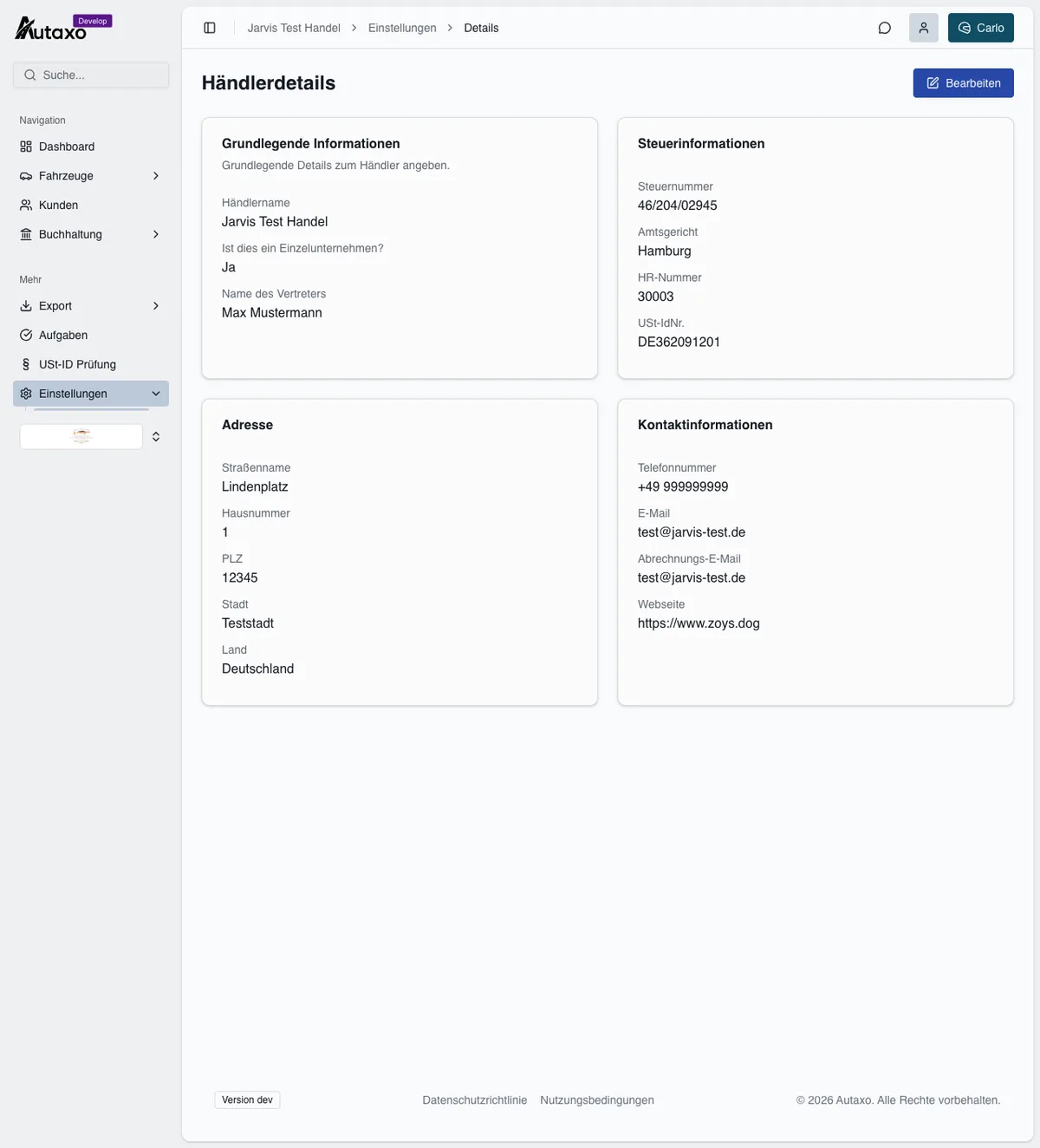
- Complete your dealer details under Settings, Details: company data, tax number, address and bank details.
- Upload your logo. It appears on invoices, contracts and in your AI showrooms.
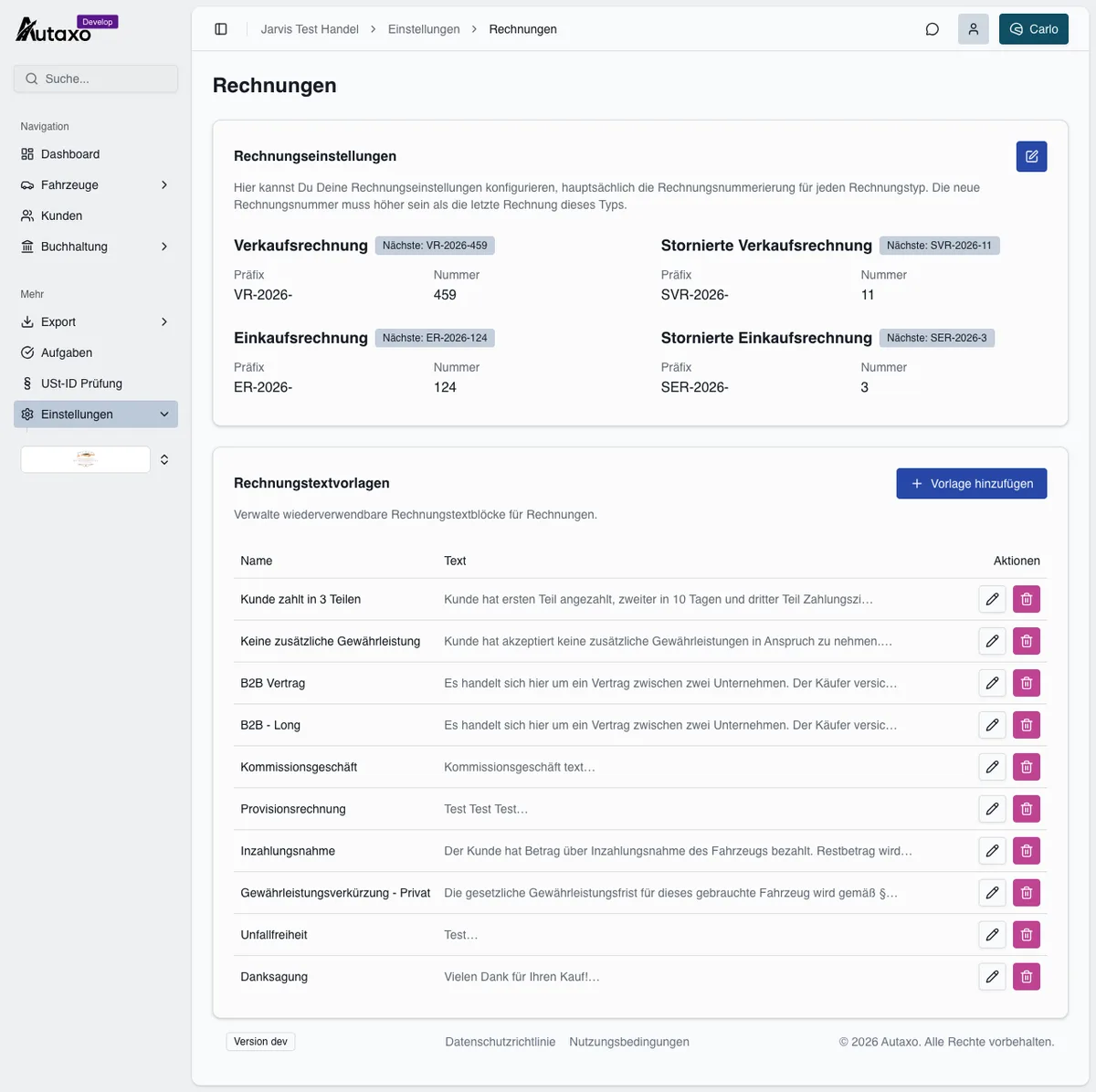
- Define your invoice number ranges under Settings, Invoices.
- Connect mobile.de and import your inventory under Settings, Integrations.
- Configure DATEV, optionally, for automatic accounting exports.
- Set up the cash book with an opening balance and effective date.
Tip
Dashboard
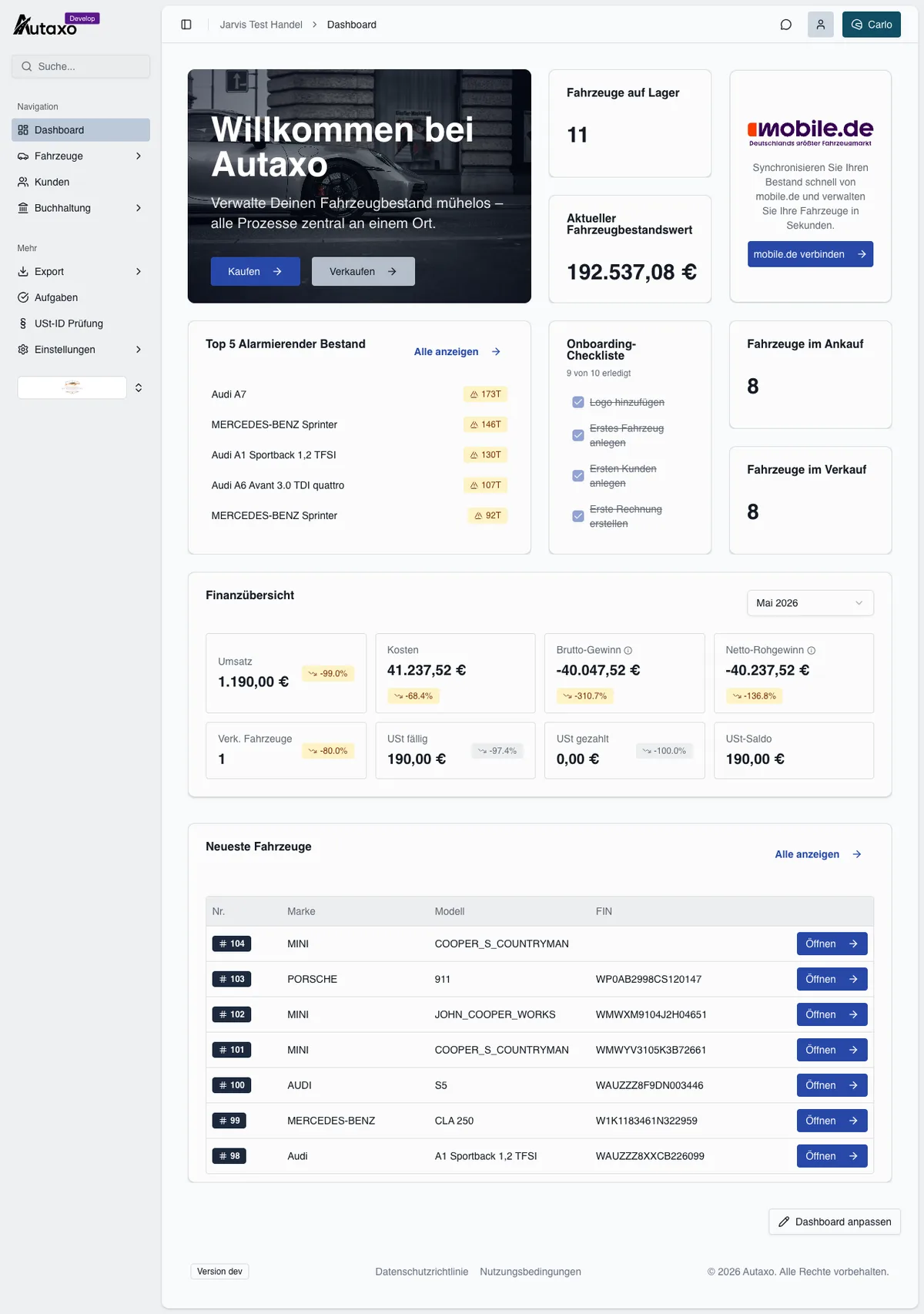
The dashboard is your home screen. Use “Buy” or “Sell” at the top to jump directly into the relevant process. On the right, you can see at a glance how many vehicles are in stock and the value of your inventory.
The financial overview shows eight monthly metrics: revenue, costs, gross profit, net gross profit, vehicles sold, VAT due, VAT paid and the VAT balance, each compared with the previous month.
Important
Widgets such as “Top 5 Alarming Inventory”, which lists vehicles with the longest days in stock, and the onboarding checklist help you keep track of everything.
Managing vehicles
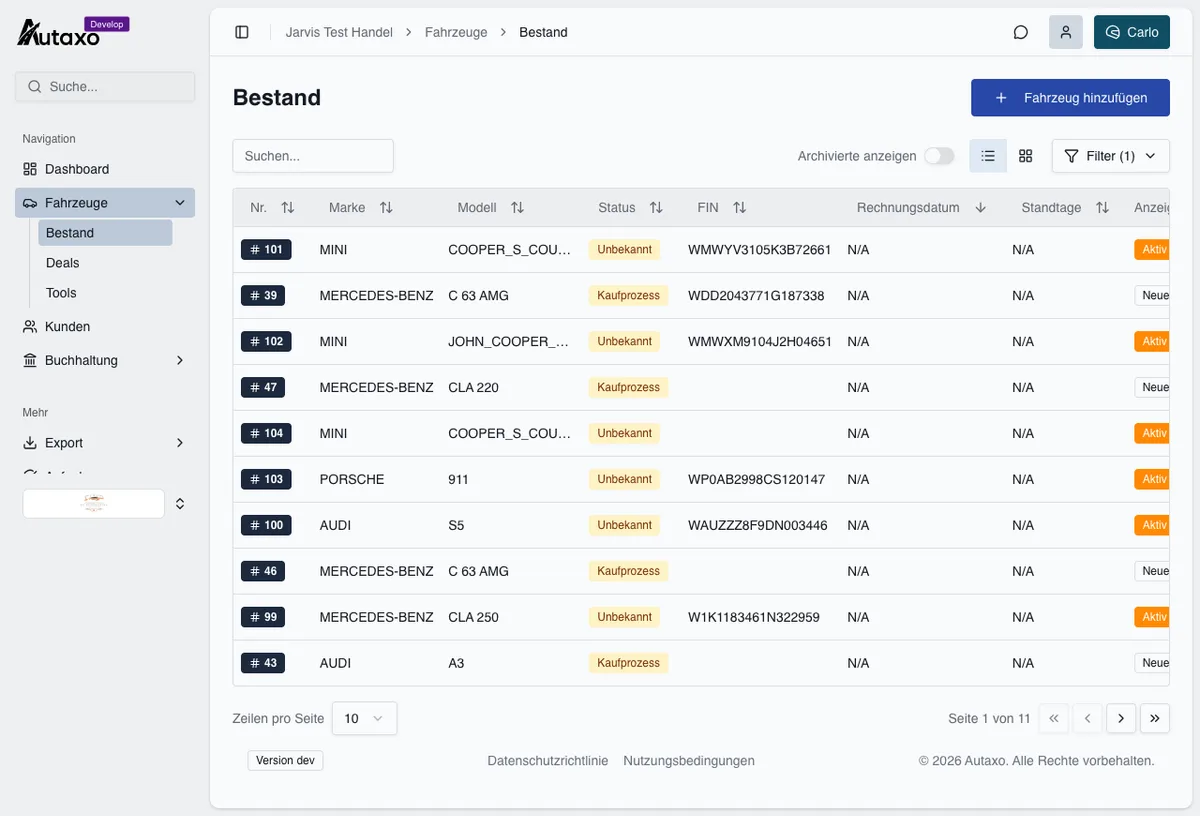
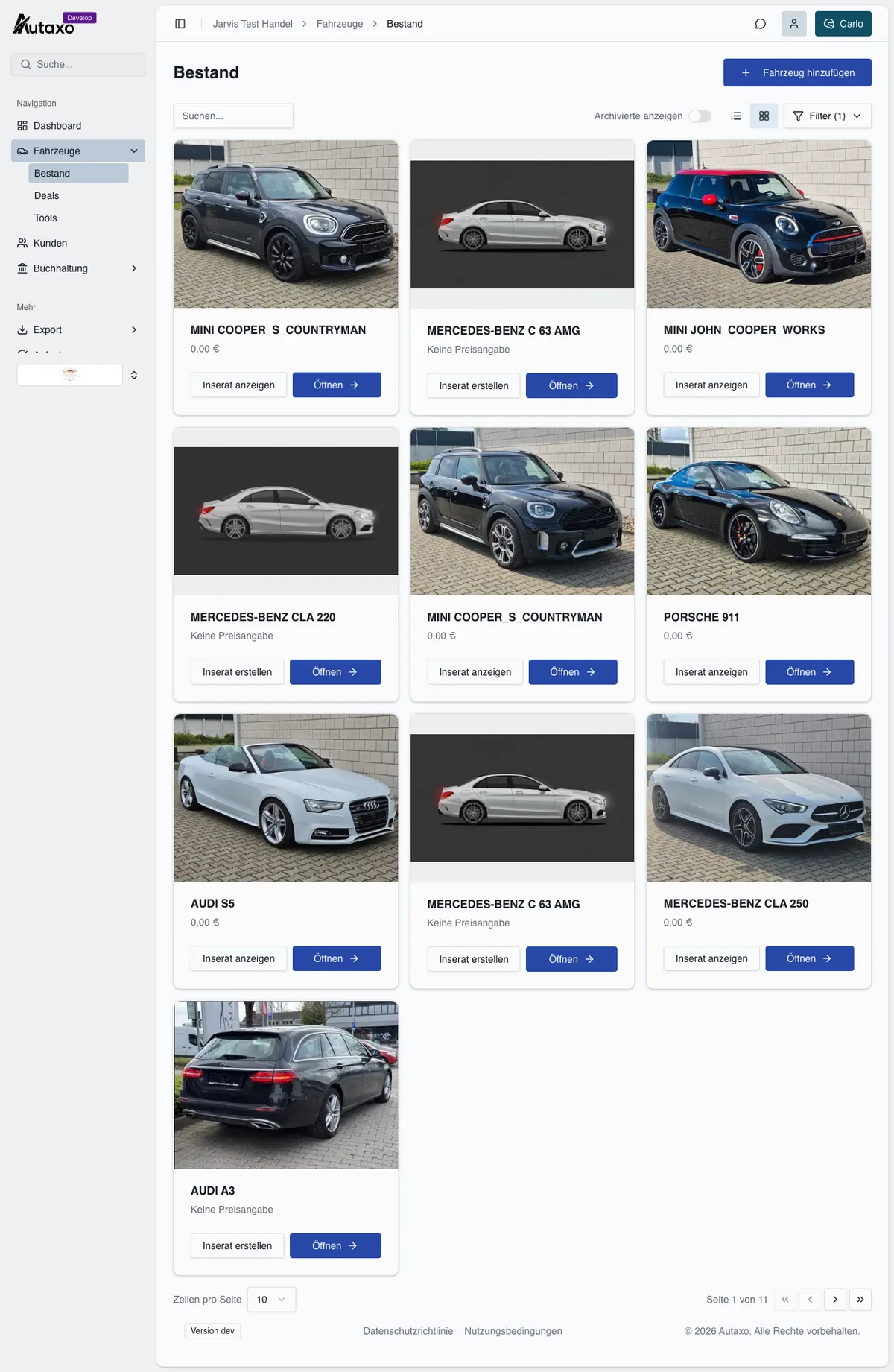
Under Vehicles, Inventory, you will find every vehicle either in a list with sortable columns including days in stock and status, or as a card view with the image, price and most important specifications.
Add a vehicle
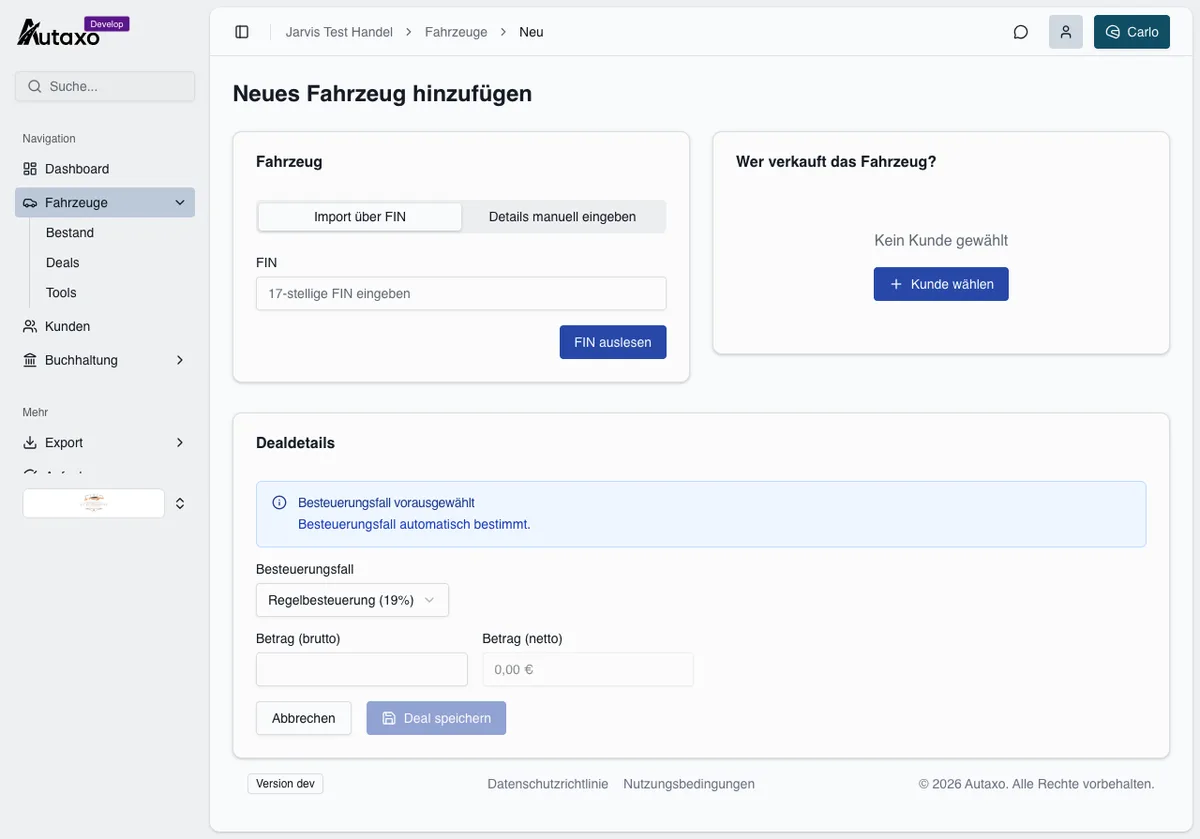
Create a vehicle with “+ Add vehicle”, either by VIN import, where you enter the 17-character vehicle identification number and Autaxo decodes the make, model, engine and other data, or manually. In the same step, you can create a purchase deal with the customer and price on the right.
The vehicle record
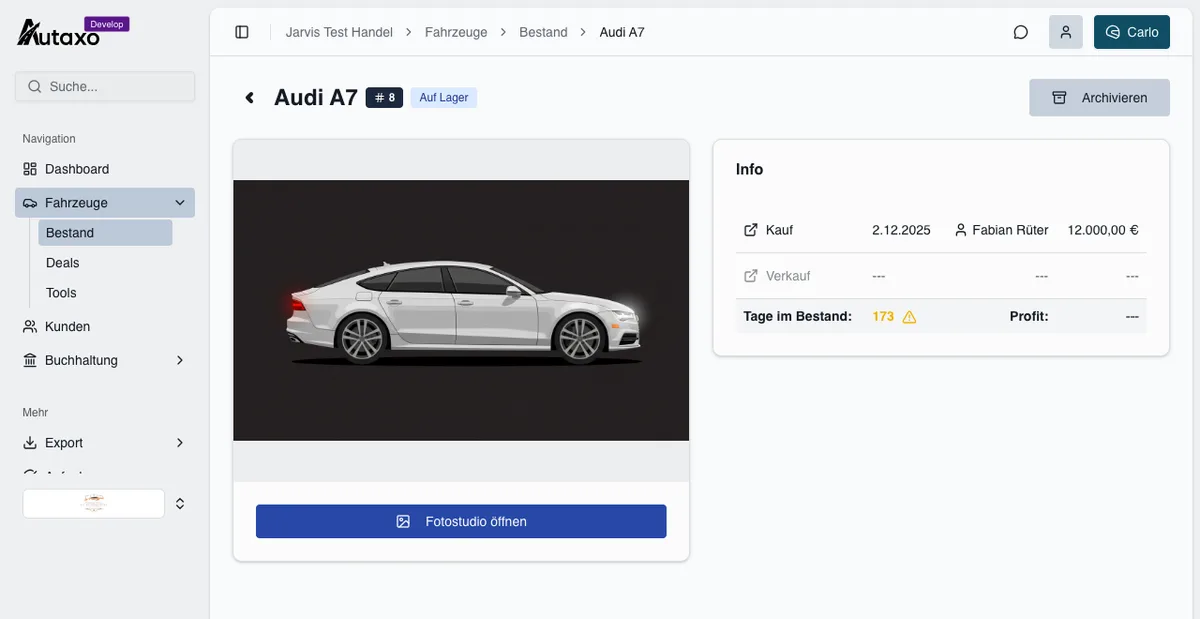
The vehicle record is the central detail page. It includes an image carousel with access to the Photo Studio, purchase and sales deals, days in stock with a warning icon for long stock times, internal notes, marketplace status and all editable vehicle details. When you sell, Autaxo also suggests an AI-assisted recommended sale price.
Tools: VIN and vehicle history
Under Vehicles, Tools, you can decode a VIN through Vincario or request a CarVertical vehicle-history report covering accidents, mileage and previous owners.
Customers and VIES validation
Under Customers, you manage private and business customers. Customer records can be created manually, automatically during document import, through a VIES query or by Carlo, for example from a photo of a business registration document.
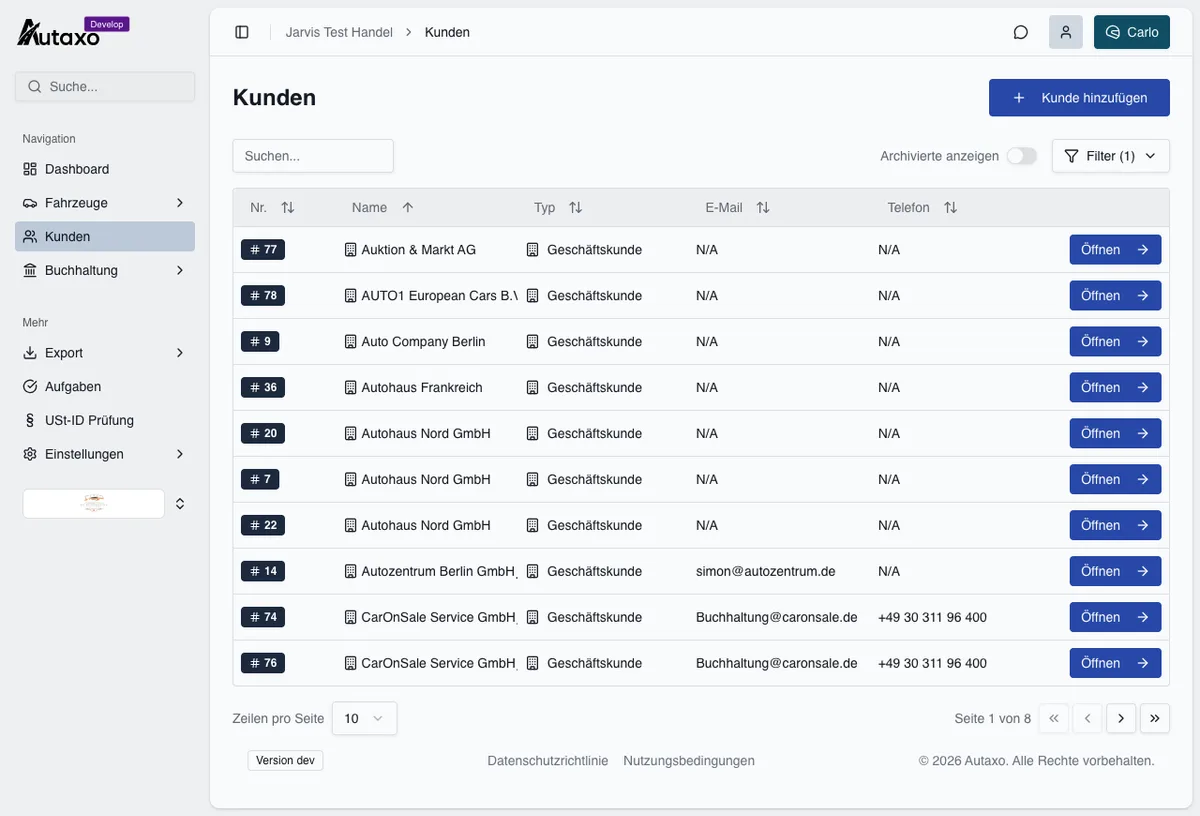
For a business customer, enter the VAT ID with its country prefix and run the VIES query. Autaxo retrieves the company name and address directly from the EU register and completes the customer record automatically.
Important
Sales process and tax logic
A deal connects the vehicle, customer and tax treatment. Create the purchase when adding the vehicle or through “Buy.” Start the sale from “Sell” in the vehicle record once a purchase invoice exists.
The core is automatic tax-treatment detection. Autaxo determines the treatment from four factors: the original purchase, including margin scheme or standard VAT, the customer type, customer country and VAT ID validation.
- Margin scheme under Section 25a UStG: Purchase from a private seller, small business or dealer applying the margin scheme. Only the margin is taxed; VAT is not shown separately on the invoice.
- Standard taxation at 19%: Purchase with input VAT deduction and a domestic sale; VAT is shown.
- Intra-Community supply: Sale to an EU business customer with a valid VAT ID, exempt under Section 6a UStG; a confirmation of arrival (Gelangensbestätigung) is required.
- Export supply to a third country: Sale outside the EU, exempt under Section 4 no. 1a UStG; an MRN or export document is required.
Tip
Invoices
Under Accounting, Invoices, you can see all purchase and sales invoices, separated by source, “Autaxo” or “Import.” Invoices without an invoice number appear as a draft.
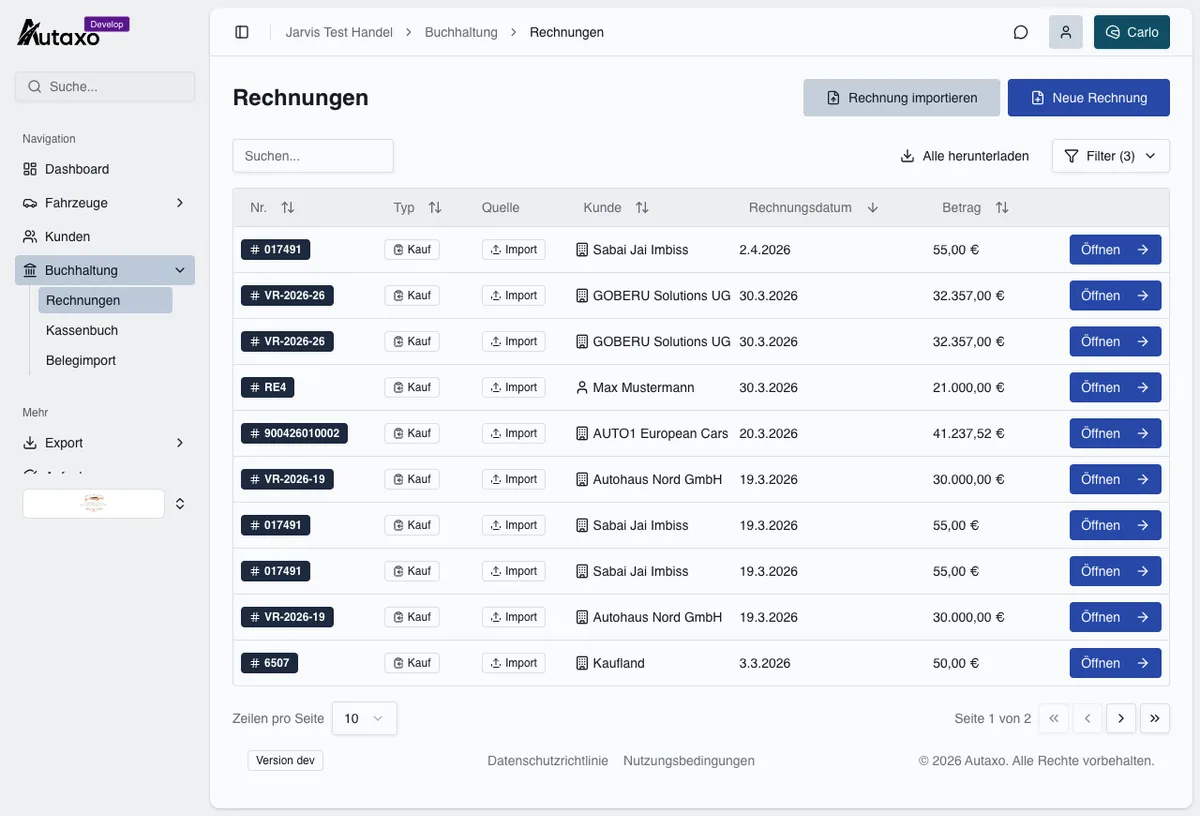
When creating an invoice, add line items manually or insert a vehicle directly from inventory, use text snippets such as warranty language and define the payment notice. If a payment includes a cash portion, Autaxo creates a cash-book entry automatically. Once finalized, the invoice is available as a PDF for download and email; you can create a cancellation invoice with one click.
Tip
AI document import
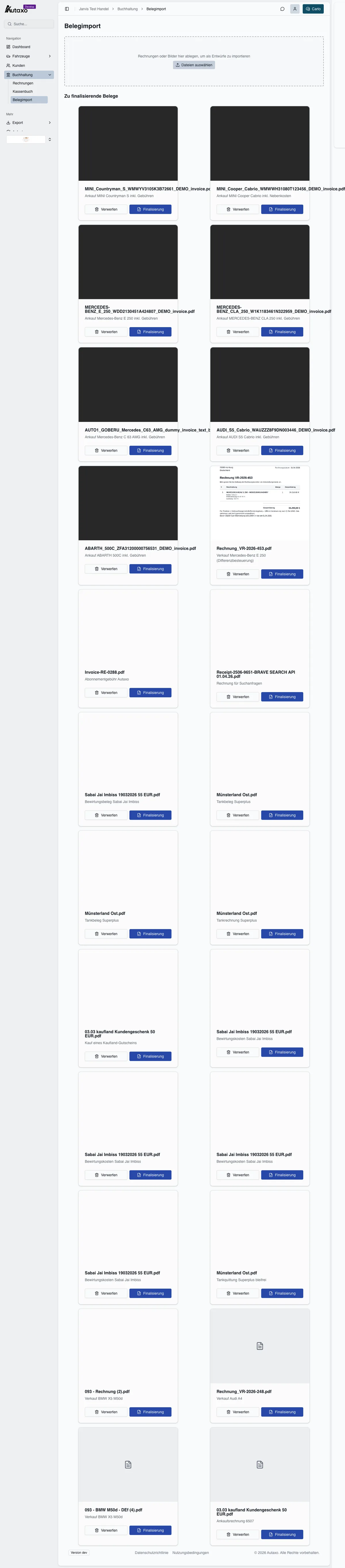
Document import, under Accounting, Document import, is designed for batch processing. Drag an entire set of PDFs or photos into the upload area. Carlo processes every document in parallel, with per-document status progressing from “Uploading...” through “Analyzing...” to the completed preview.
Carlo identifies the supplier, date, amounts and tax rates and uses the VIN to assign a document automatically to the correct vehicle. Review each document in the familiar edit and preview view and complete it by selecting “Finalize.”
Important
Cash book
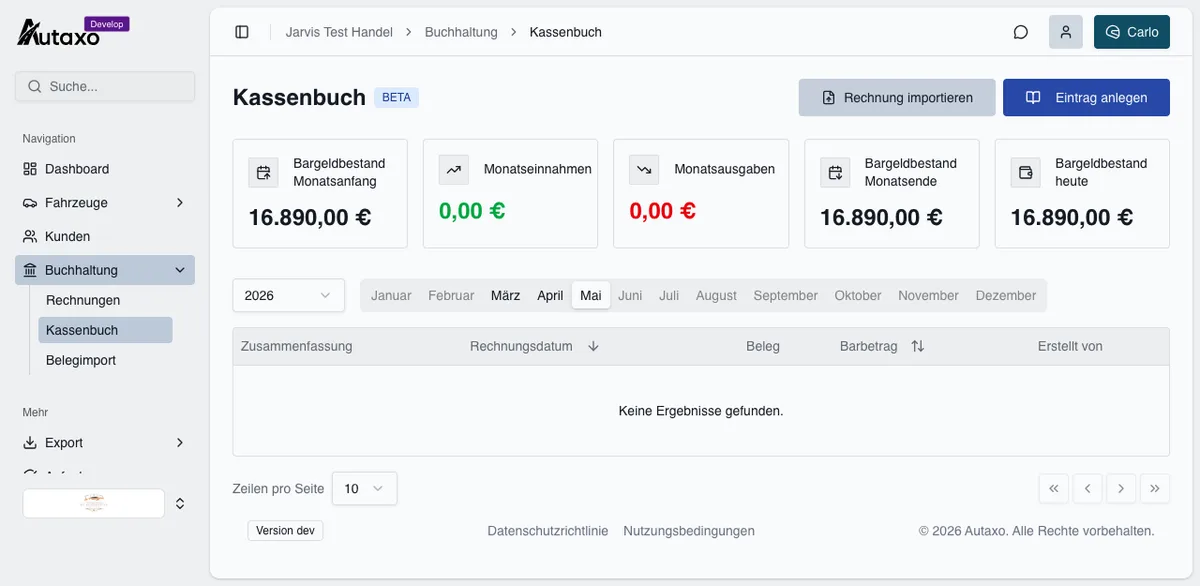
The digital cash book, under Accounting, Cash book, records every cash transaction automatically from invoices containing a cash portion and from manual entries. On first use, configure it with an opening balance and opening date.
Important
Tasks and mandatory documents
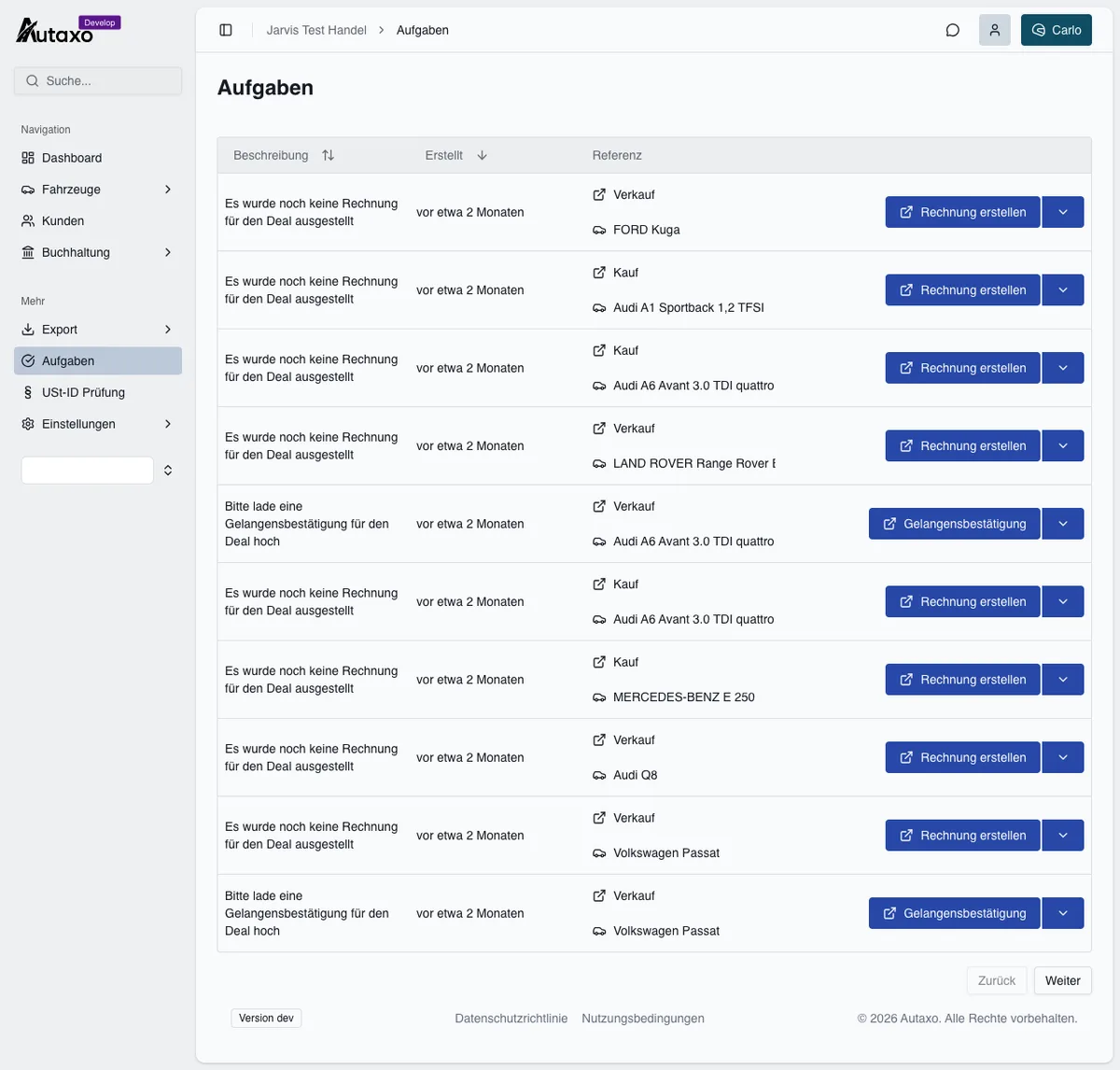
Autaxo creates tasks automatically when tax-relevant documents are missing, such as an invoice, a confirmation of arrival (Gelangensbestätigung) for an EU sale, or an MRN document for an export to a third country. Each task’s action button takes you directly to the solution.
Important
VAT ID validation
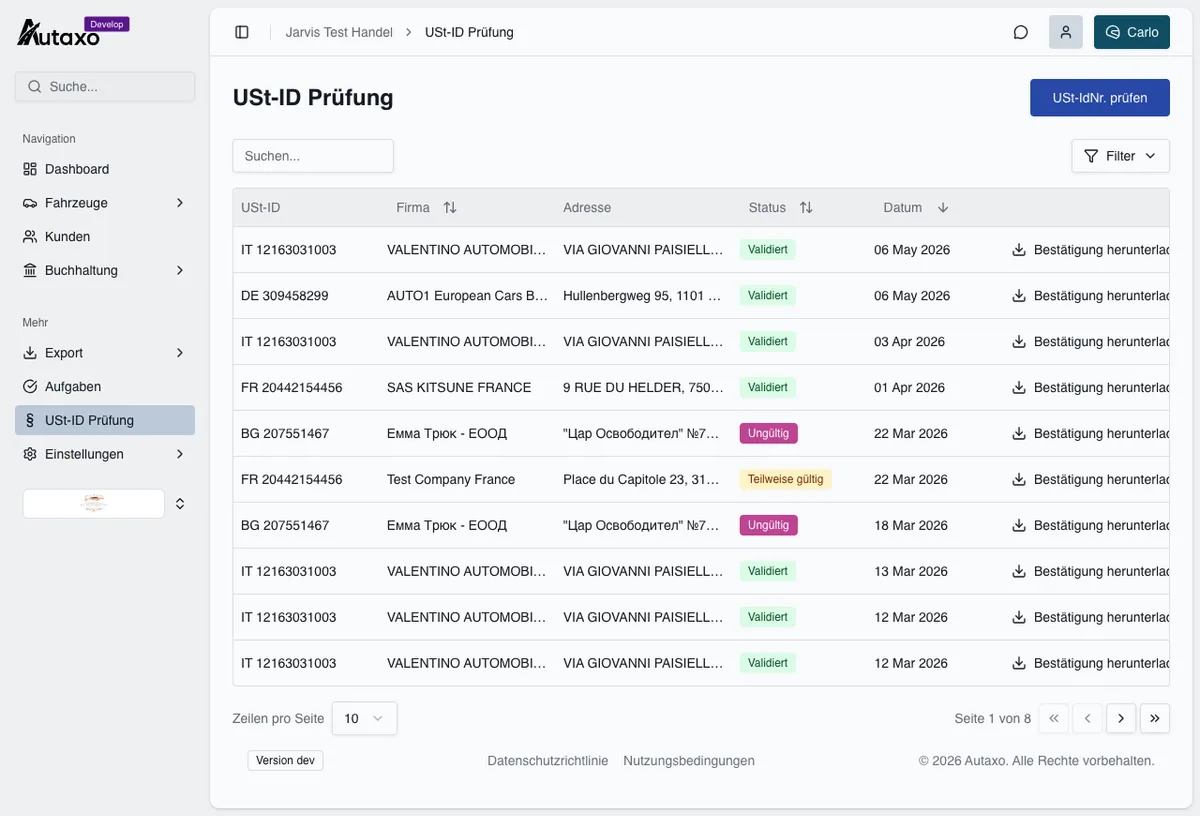
Under VAT ID Validation, you will find the complete history of VIES queries, including their status, validated or invalid, and a downloadable PDF confirmation for each query.
Tip
DATEV and vehicle trading register
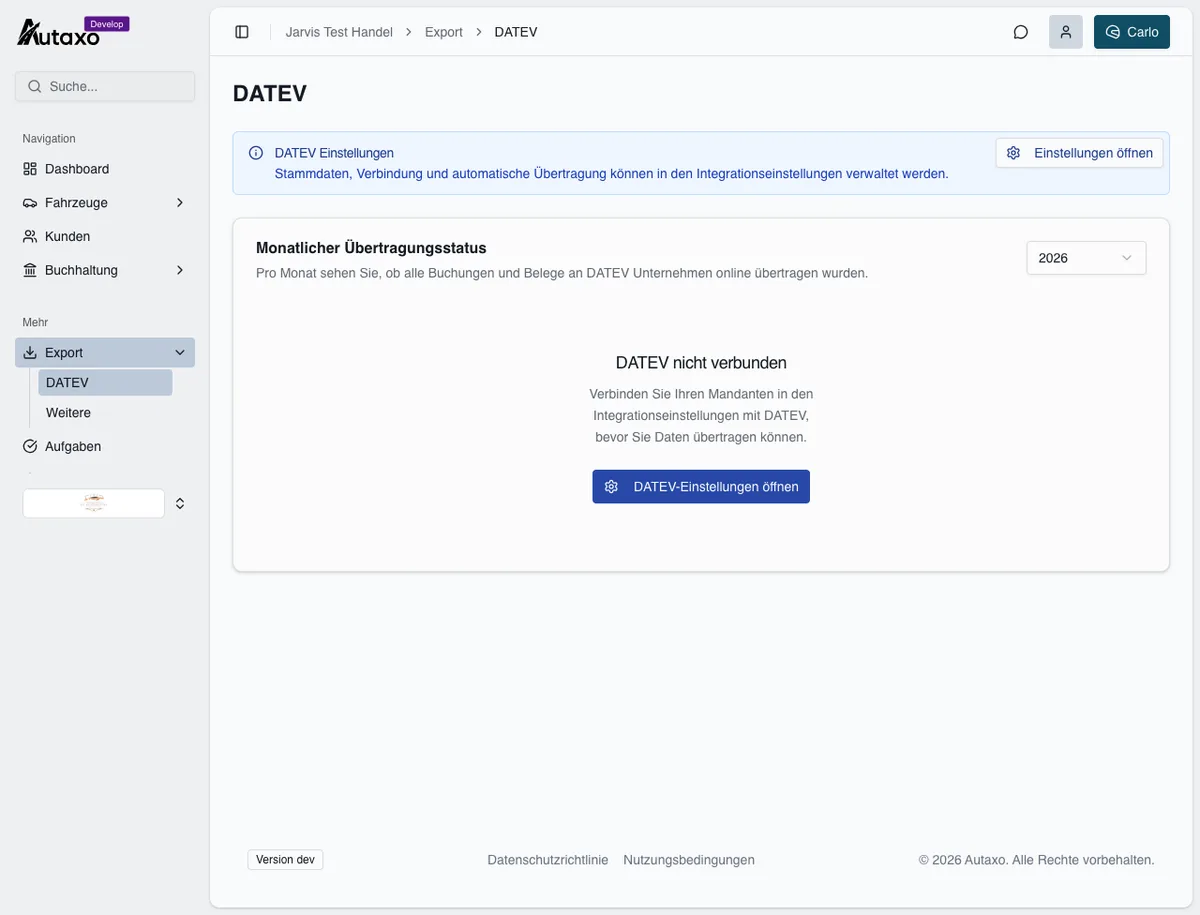
The DATEV export, under Export, DATEV, shows for each month whether all accounting entries and documents were transferred to “DATEV Unternehmen online.” The accounting-data service automatically sends revenue, debit and credit entries, accounts, BU keys, document numbers and posting texts to the tax adviser.
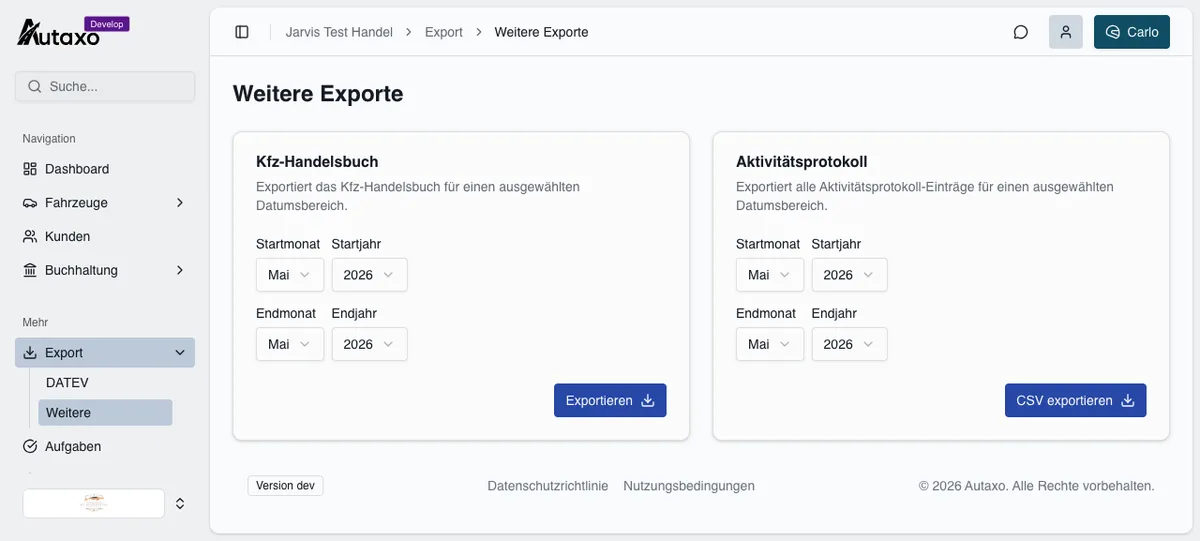
Under Export, More, export the audit-ready vehicle trading register (Kfz-Handelsbuch) for any date range as CSV or XLSX, including all purchase and sale data for each vehicle.
Important
Document templates
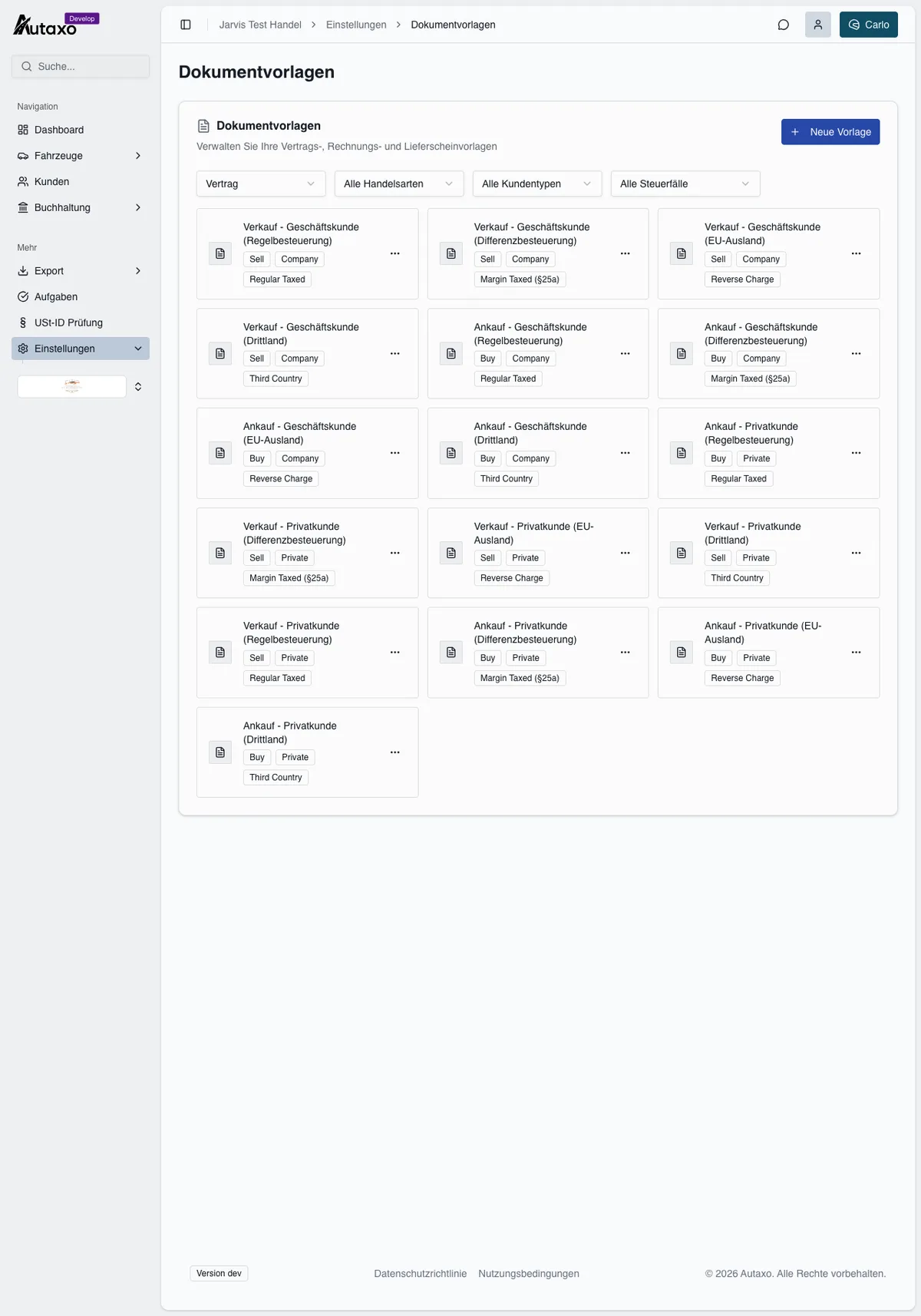
Under Settings, Templates, customize every contract. Autaxo includes 16 predefined templates, one for every combination of deal type, customer type and tax treatment. When you create a document from a deal, Autaxo automatically selects the matching template.
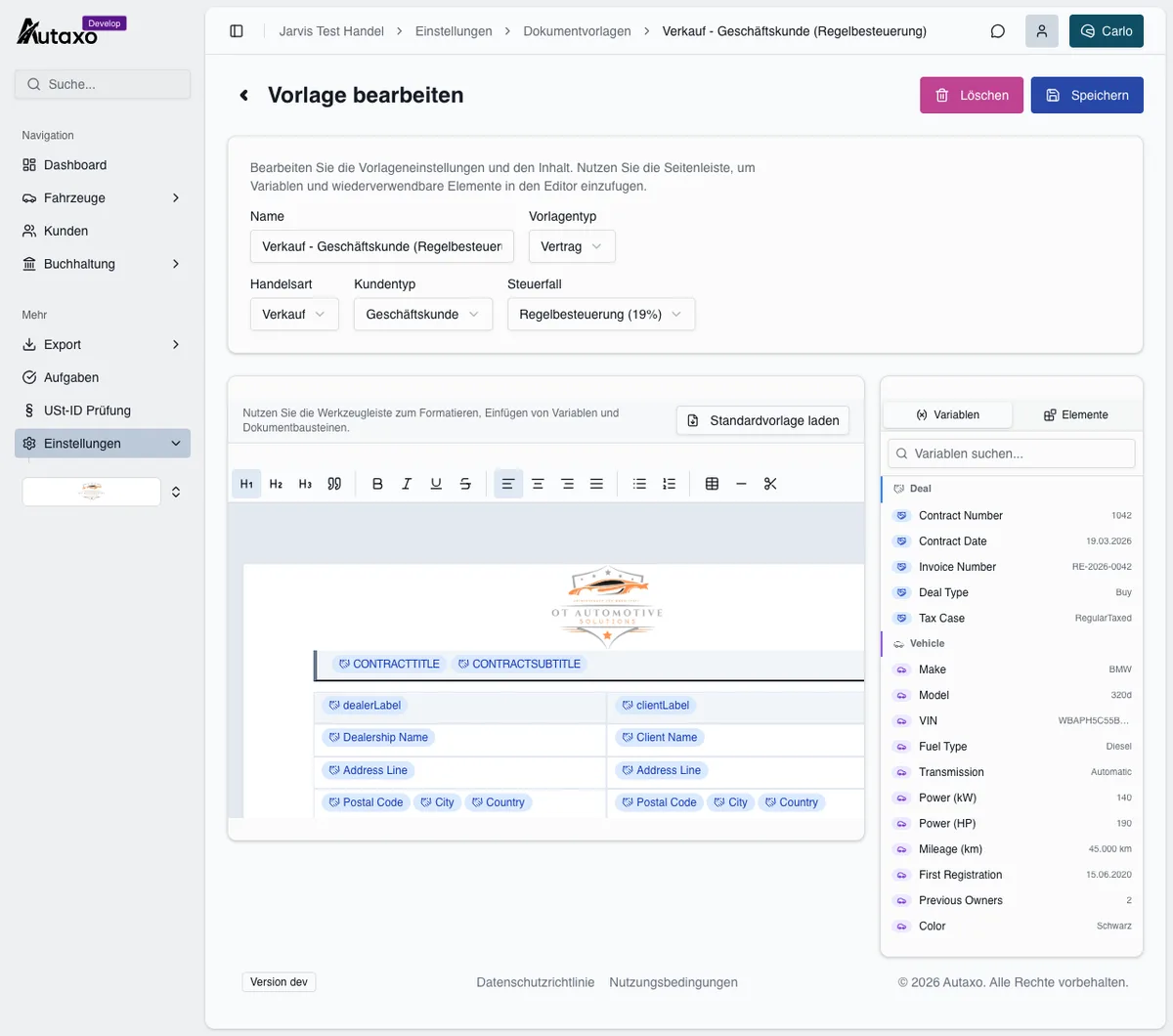
In the editor, use a rich-text editor and dynamic variables for vehicle, customer, dealer and price data, which are filled automatically for each document. Insert ready-made blocks for vehicle data, a price box, terms and conditions, ZDK conditions and signature lines with one click.
Separately, manage invoice text templates under Settings, Invoices: short snippets such as reduced warranty periods or installment payment language, which you insert while creating an invoice with “+ Text block.”
Carlo AI
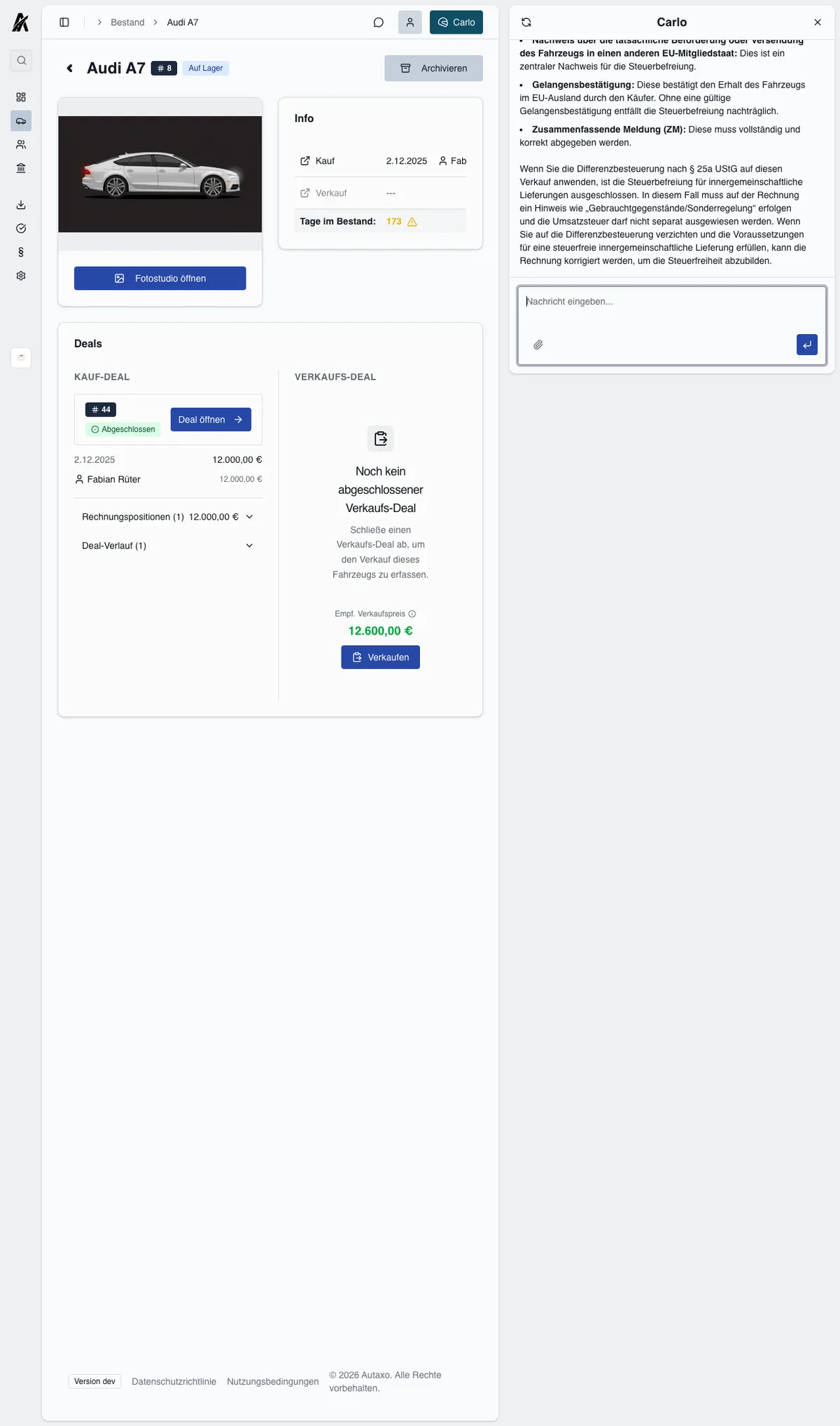
Carlo is your AI assistant, available from the button in the top-right corner as a sidebar on desktop and full-screen chat on mobile. Carlo can both answer specialist questions about Section 25a, margin scheme taxation, GoBD, confirmations of arrival and mobile.de, and perform actions, such as creating a customer or changing a vehicle status.
Tip
AI Photo Studio
Open the Photo Studio from “Open Photo Studio” in the vehicle record. Upload phone photos and AI isolates the vehicle, then places it in a professional showroom that you can create with your own text prompt, such as “dark luxury showroom with warm lighting.” Once generated, a showroom can be reused for any number of vehicles.
Important
Settings and integrations
Under Settings, Details, maintain all information that appears on invoices, contracts and in your showroom: core company details, tax information, address, bank details and logo.
Connect mobile.de
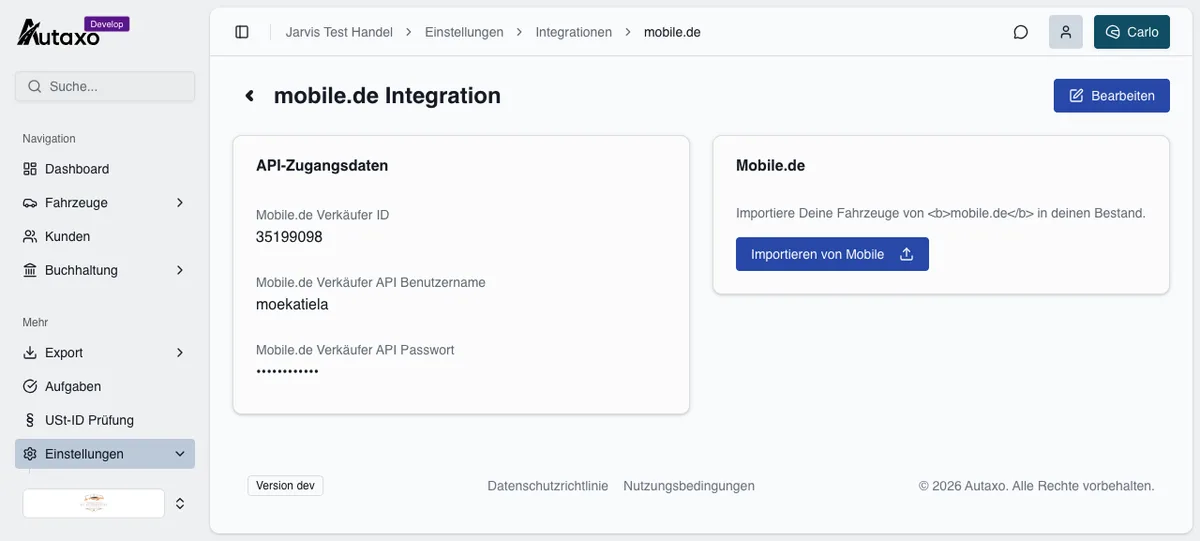
Under Integrations, mobile.de, enter your API credentials and use “Import from Mobile” to import your full inventory, including images and equipment.
Configure DATEV
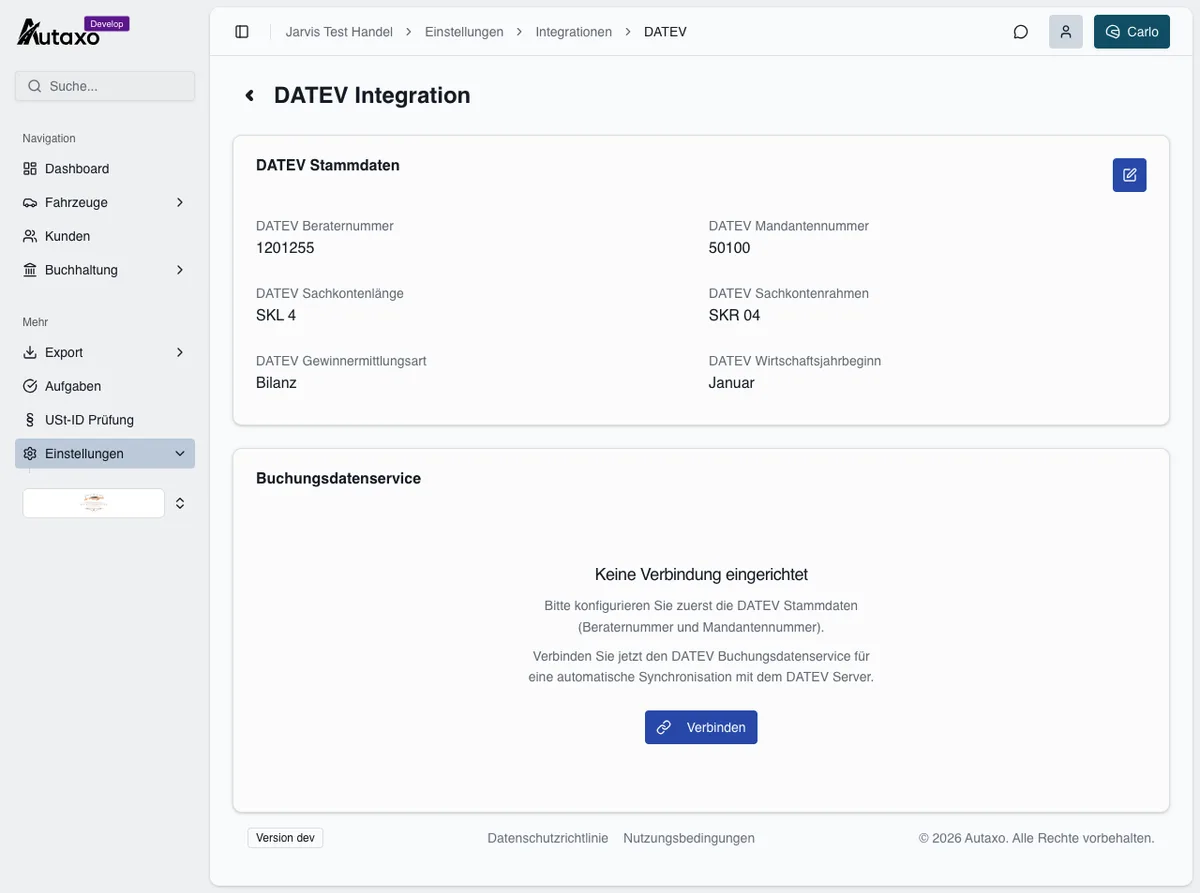
Under Integrations, DATEV, first configure the master data, including adviser and client numbers, chart of accounts and profit-determination method. Then connect the accounting-data service using DATEV SmartLogin and its QR code.
Important
Frequently asked questions
Do I have to set the margin scheme under Section 25a manually?
No. Autaxo identifies the tax treatment automatically from the customer type, customer country and original purchase. You can override it manually in the deal if necessary.
How do I import my mobile.de inventory?
Go to Settings, Integrations, mobile.de, enter your API credentials and select “Import from Mobile.” All vehicles, including images and equipment, are imported.
Does AI image enhancement retouch my vehicle?
No. The vehicle remains unchanged: scratches, dents and stickers are preserved. Only the background is replaced with a showroom.
Which DATEV charts of accounts does Autaxo support?
SKR 03, SKR 04 and SKR 51. Your tax adviser provides the master data, such as adviser and client numbers.
Ready to try Autaxo yourself?
Start free or let us show you Autaxo in a personal demo. We will set it up for your dealership together.